Media Library
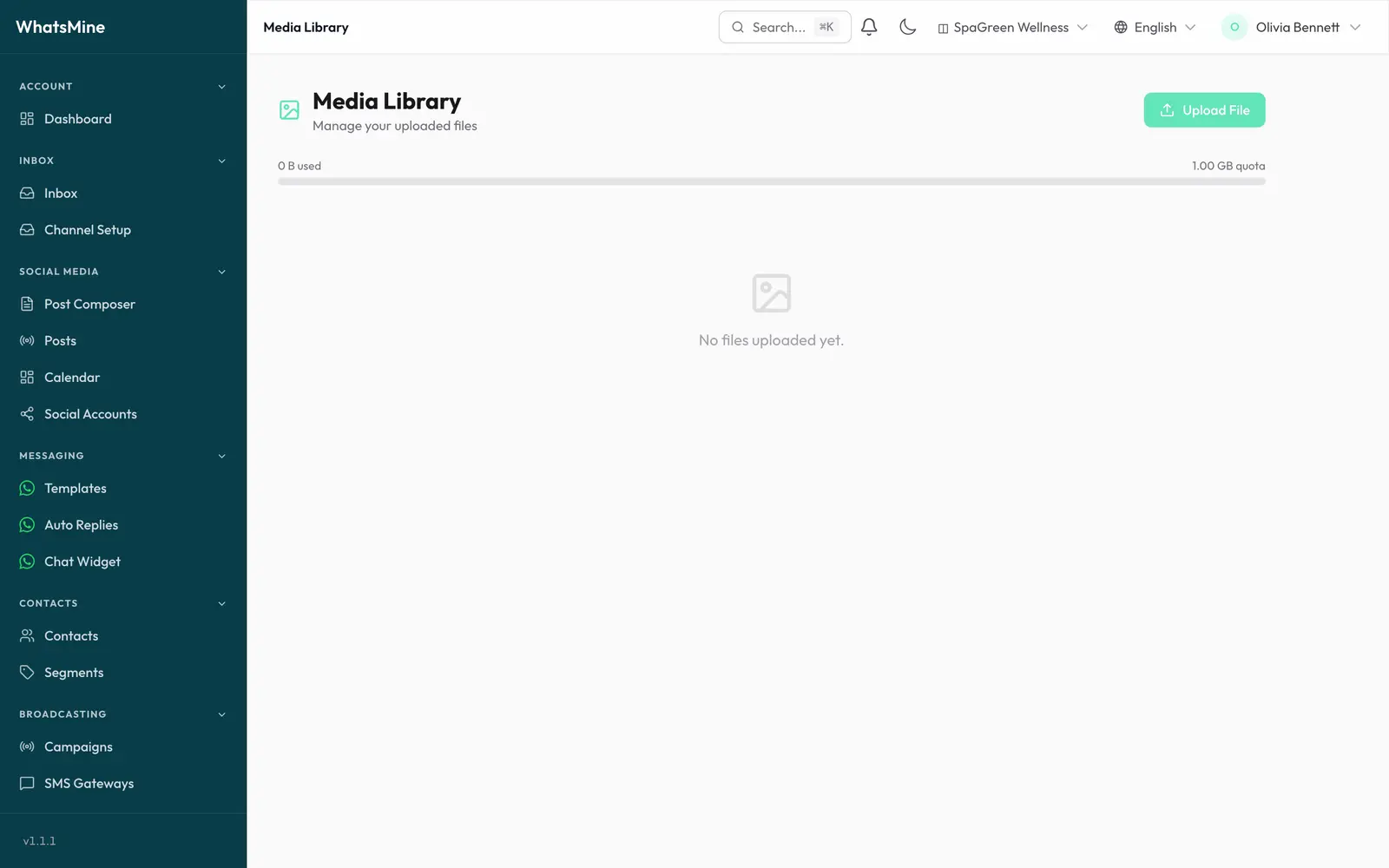
The Media Library is your workspace's file store. Anything you upload here can be re-used across the app — sent as a WhatsApp attachment, attached to a broadcast, or used as an image in a social post.
Location: Media (/app/media)
Uploading
Drag files onto the page, or click Upload. Files appear newest-first, 24 per page.
Allowed file types
| Kind | Extensions |
|---|---|
| Images | jpg, jpeg, png, gif, webp |
| Documents | pdf, doc, docx, xls, xlsx, ppt, pptx, csv, txt |
| Audio | mp3, wav, ogg, m4a |
| Video | mp4, webm, mov |
Maximum 50 MB per file.
Why HTML and SVG are rejected
Files are served from the same origin as the app, so scriptable formats (HTML, SVG, JavaScript) are deliberately excluded — uploading one would be a stored-XSS risk for everyone in your workspace.
Storage quota
Your plan sets a storage allowance (the storage_gb limit). The page shows how much you've used against it.
When you hit the limit, uploads are refused until you delete files or move to a larger plan — see Billing & Subscription.
Where media is stored
Files go to whichever storage backend your provider has configured — the server's local disk, Amazon S3, DigitalOcean Spaces or Wasabi. That choice is made platform-wide by the administrator; see Storage.
Using a file
- Copy URL — take the public link to use anywhere.
- Send in a conversation — pick it from the attachment menu in the Inbox.
- Attach to a campaign — choose it when building a broadcast.
- Delete — removes the file from storage and frees the quota. Messages that already went out keep their copy.
Deleting is permanent
There is no trash. A deleted file is gone from storage, and any page still pointing at its URL will show a broken link.
➡️ Next: keep an eye on activity in Notifications.