Notifications
WhatsMine tells you when something needs you — a new customer message, a mention from a teammate, a campaign that finished, an automation that broke, a payment that failed.
The notification centre
Location: the bell in the top bar, or Notifications (/app/notifications)
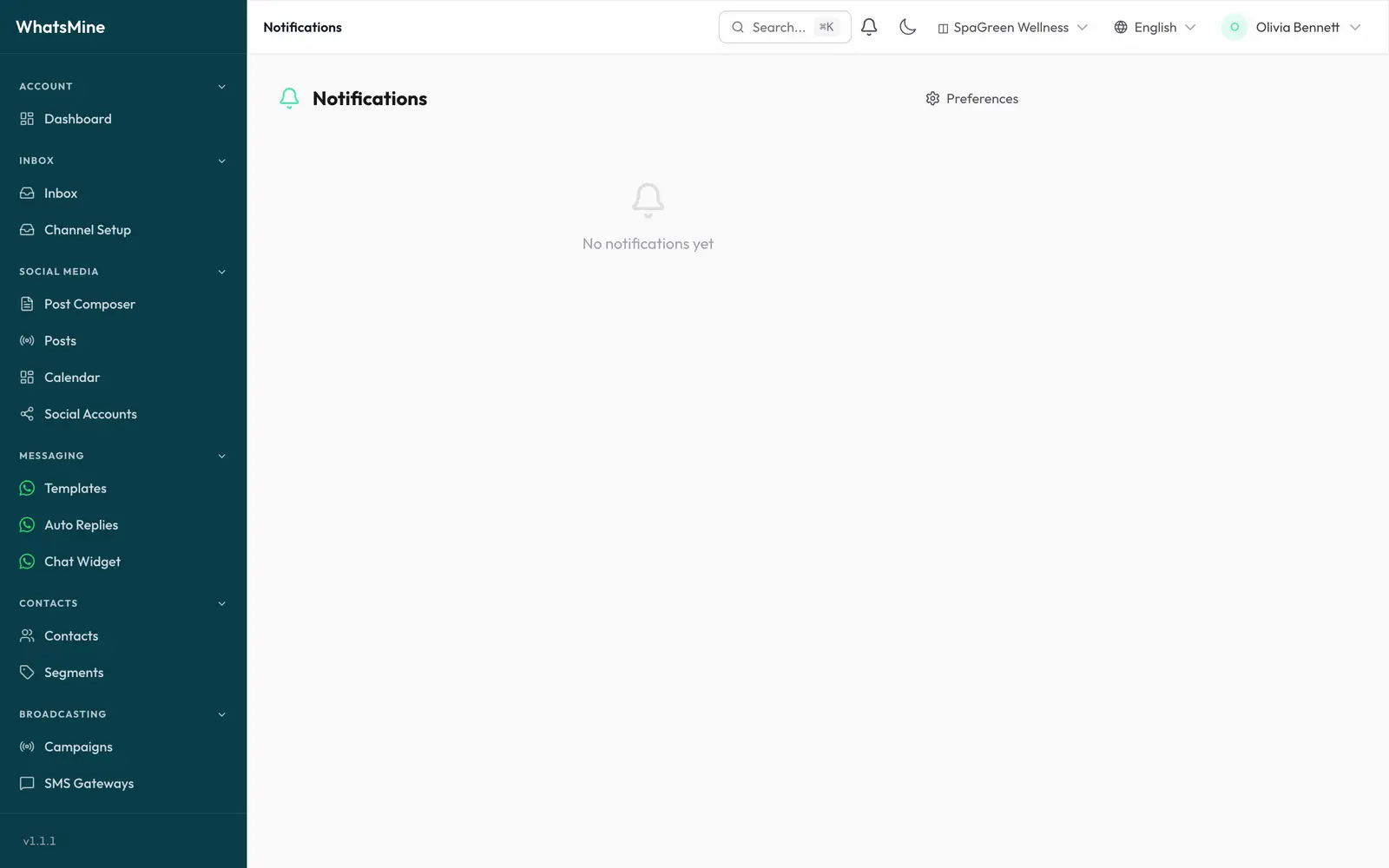
The bell shows an unread count and updates live — you don't have to refresh the page. Opening it shows the most recent notifications; the full page lists everything.
From here you can:
- Click a notification to jump straight to the conversation, campaign or automation it's about.
- Mark one as read, or Mark all as read.
- Delete a notification you're done with.
What you get notified about
| Event | Fires when |
|---|---|
| New message | A customer replies on any channel. |
| Mention | A teammate @-mentions you in a conversation note. |
| Campaign completed | A broadcast finishes sending. |
| Automation failed | An automation run errors out. |
| Billing failed | A subscription payment is declined. |
Choosing how you're notified
Location: Settings → Notifications (/app/settings/notifications)
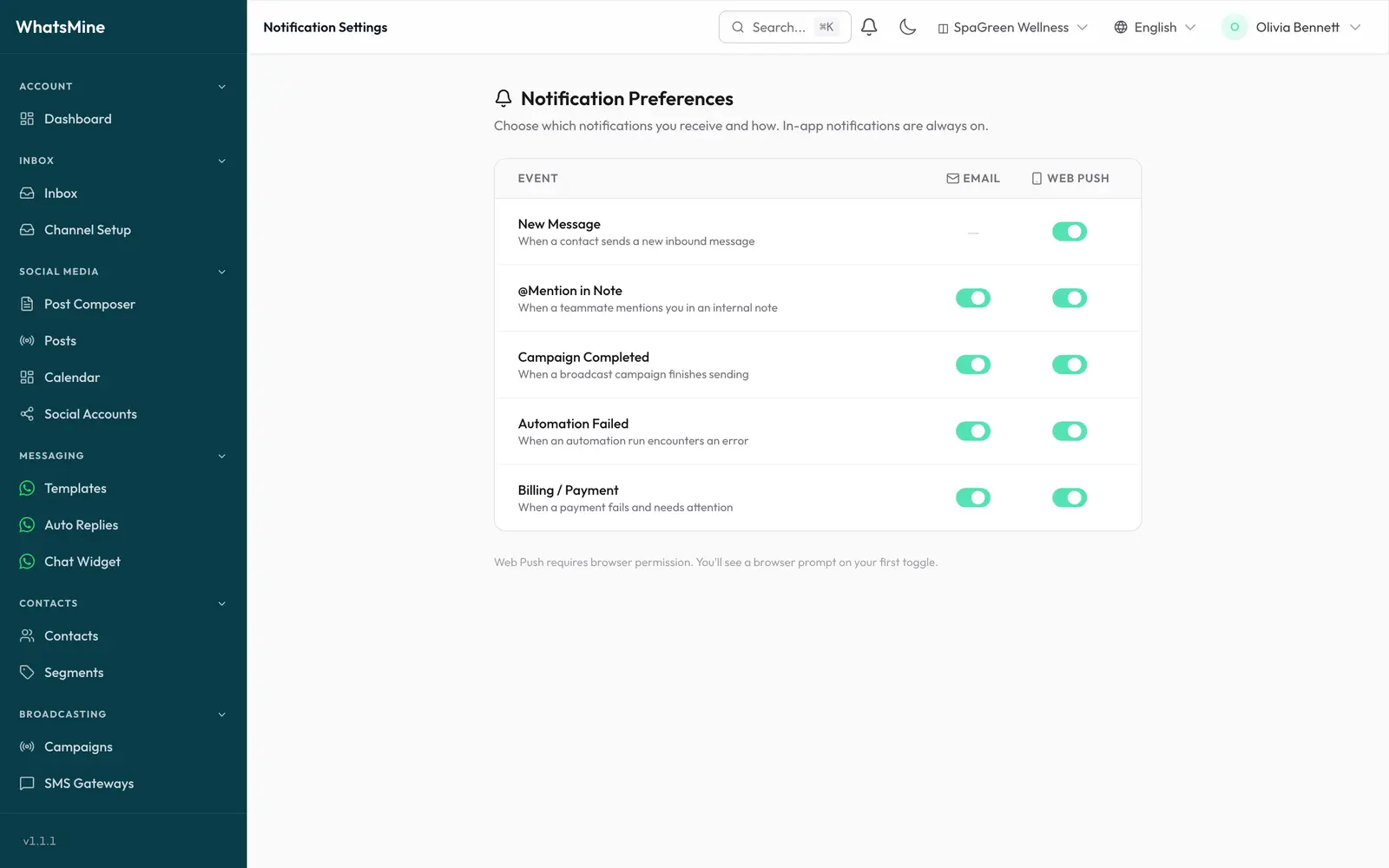
Each event can be delivered on two channels, toggled independently:
- Email — sent to your account address.
- Web push — a browser notification, so you're alerted even when the tab isn't open.
In-app notifications in the bell are always on.
New-message email is deliberately unavailable
One email per inbound message would be unusable on a busy inbox, so New message offers web push only. Use web push (or the mobile app) to be alerted in real time.
Turning on web push
The first time you enable a web-push toggle, your browser asks for permission. You have to Allow it — if you block it by accident, re-enable notifications for the site in your browser's site settings and toggle it again.
Web push needs the platform's realtime keys to be configured; if the toggles do nothing, ask your provider to check Realtime & Push.
Notifications are per user
Preferences belong to you, not to the workspace. Every teammate sets their own — see Workspaces & Team.
➡️ Next: get help from your provider in Support.