Support Tickets
When you need help from the people who run the platform, open a ticket from inside the app. Everything stays in one thread — no email ping-pong, and your provider sees your account details automatically.
Location: Support (/app/support)
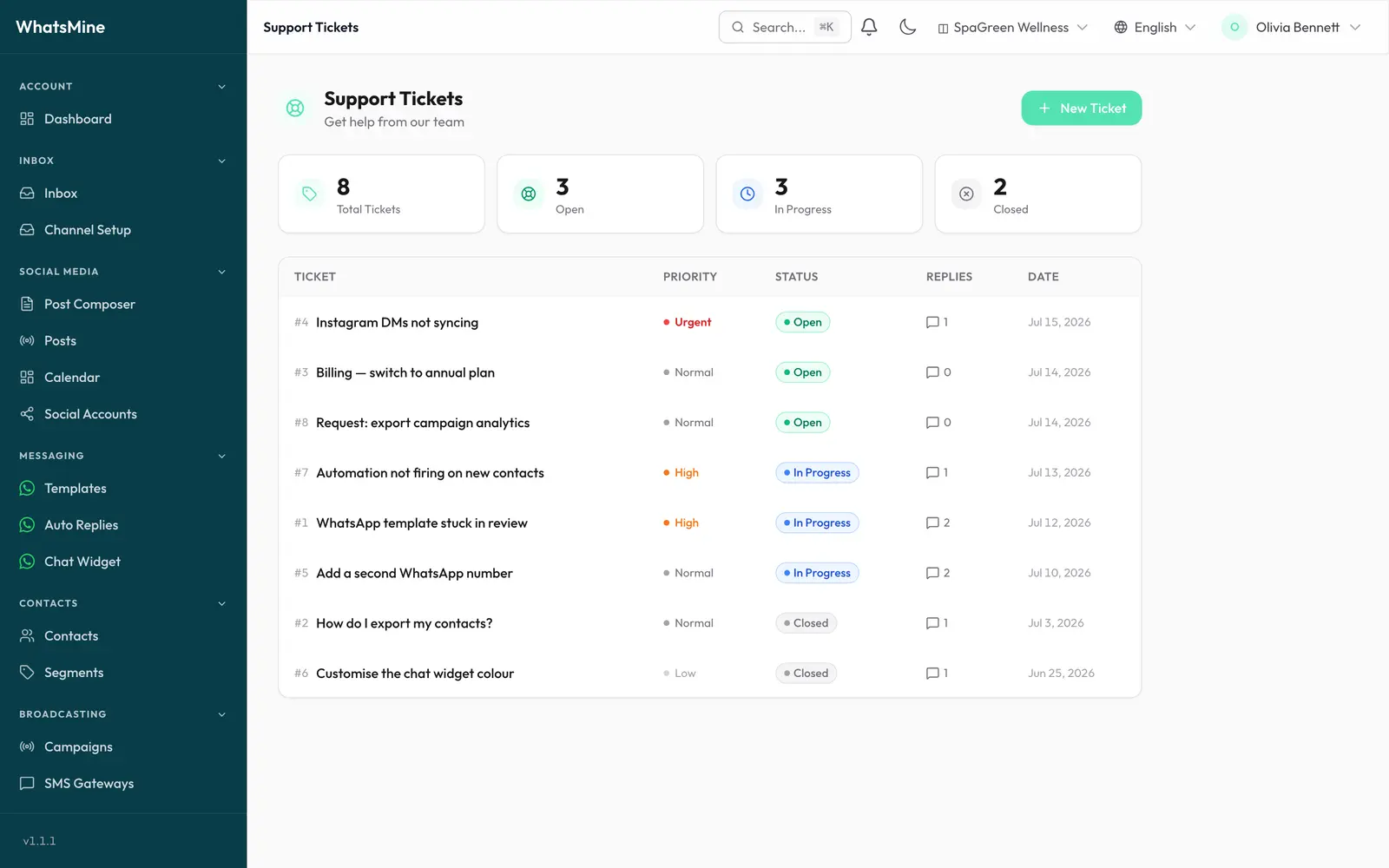
The list shows every ticket you've opened, with counts for Open and In progress at the top.
Opening a ticket
Location: Support → New Ticket (/app/support/create)
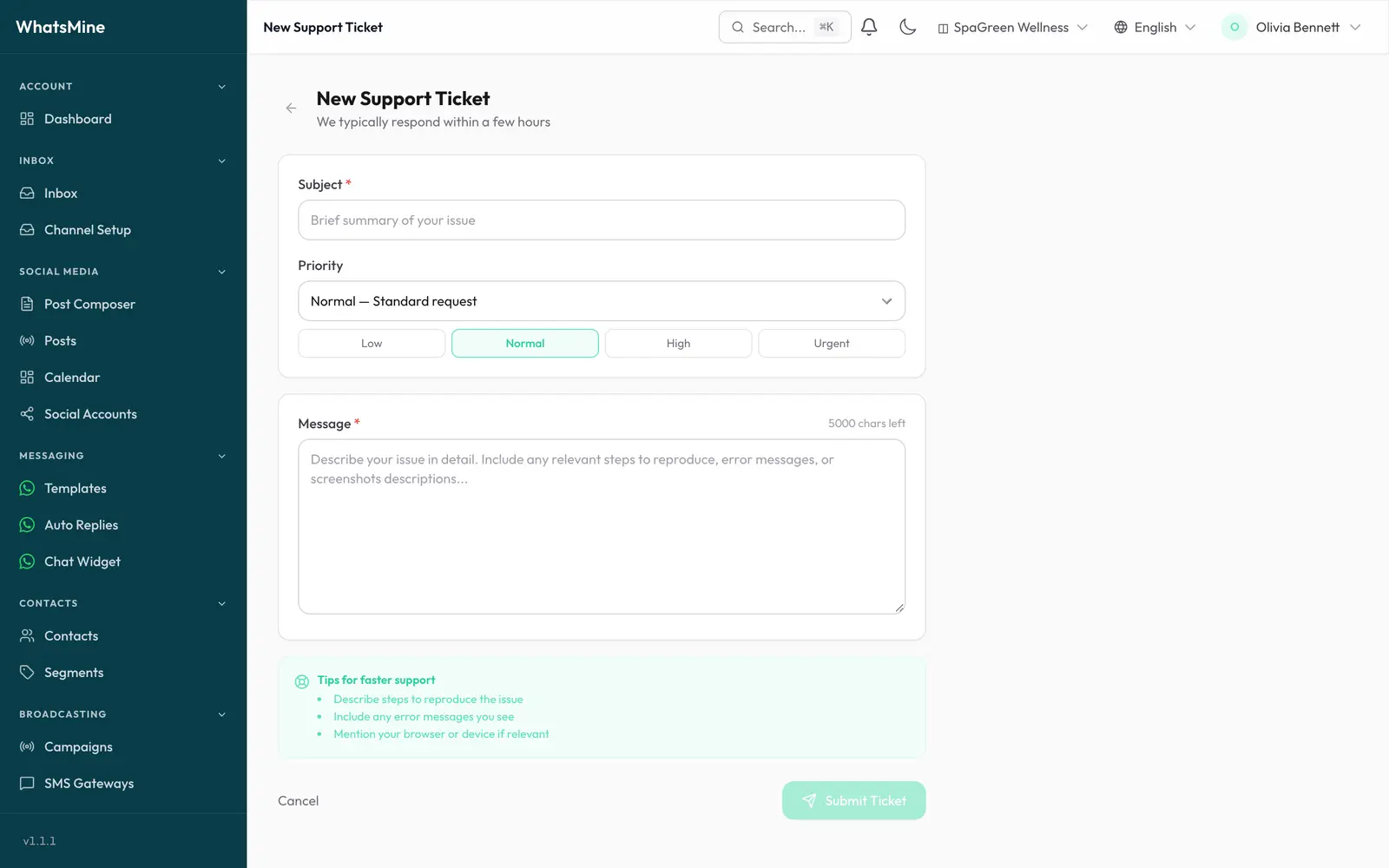
Write a Subject — one line describing the problem.
Write the Message. Include what you expected, what actually happened, and the exact error text if there is one.
Pick a Priority:
Priority Use it for Low Questions, feature requests, cosmetic issues. Normal The default — something is wrong but you can work around it. High A feature you rely on is broken. Urgent Messages aren't sending or you can't sign in. Click Submit.
Your name and email are attached automatically, and you get a confirmation email straight away.
Following a ticket
Open any ticket to see the full conversation. Staff replies are marked as such, so you can always tell who said what.
- Reply at the bottom of the thread to add information.
- You're notified when staff respond — see Notifications.
Statuses
| Status | Meaning |
|---|---|
| Open | Submitted, not yet picked up. |
| In progress | Someone is working on it. |
| Closed | Resolved. A closed ticket is read-only — open a new one if the problem comes back. |
Getting a faster answer
Include, where relevant:
- The channel involved (WhatsApp, Messenger, Instagram, SMS, Email).
- The workspace you were in.
- Roughly when it happened.
- A screenshot of the error.
Check the docs first
Many issues have a documented answer — try FAQ and Troubleshooting before opening a ticket.
➡️ Next: review your plan and invoices in Billing & Subscription.